Approve from mobile
If you visit AgentValet on a phone, you’re routed to a mobile-optimised view at /m/*. The approval flow there is built to be a couple of taps with biometric confirmation.
The mobile approval list
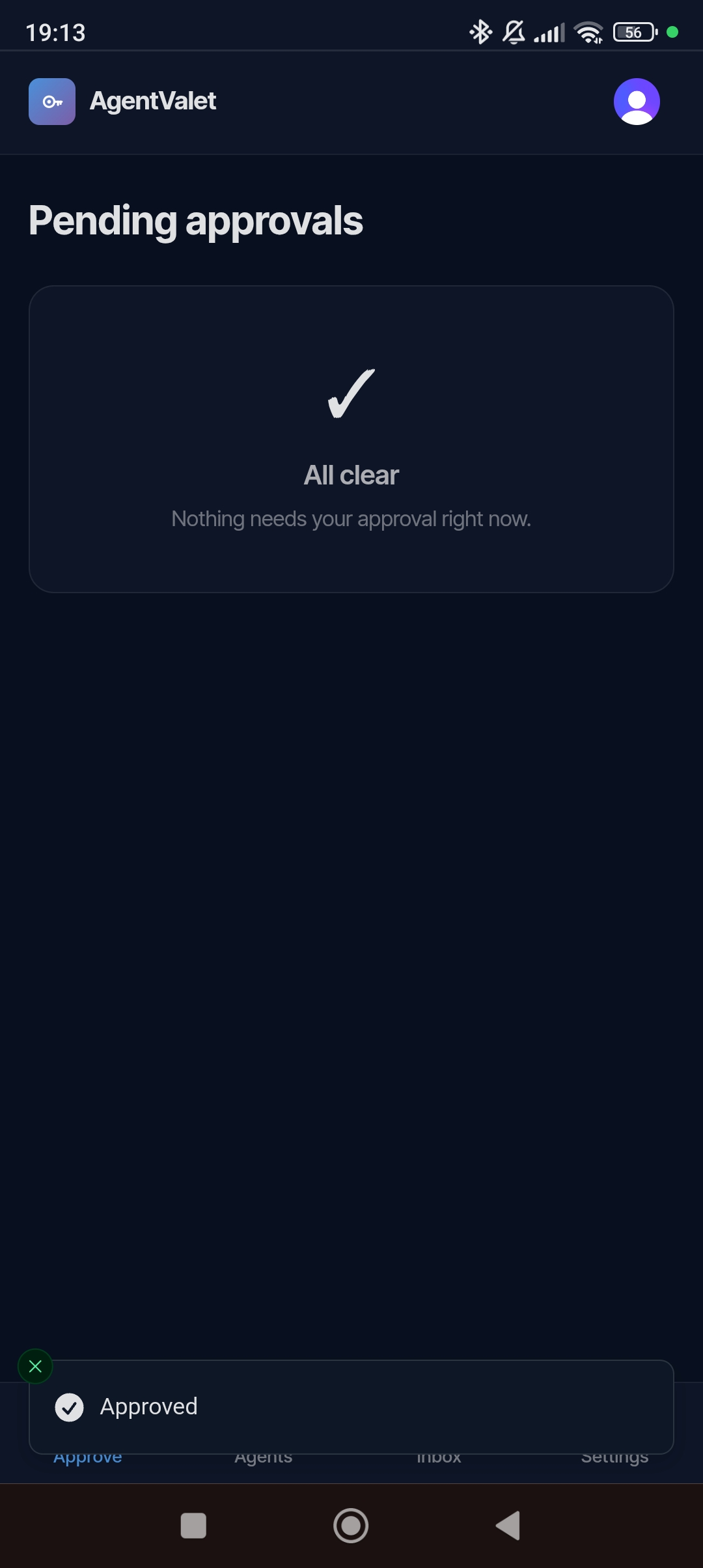
Navigate to /m/approvals (or follow a push notification on the device). You see a stripped-down list of pending cards: agent, platform, scope, expiration.
Tap any card to open the detail page.
The detail page
/m/approvals/:id asks Approve this action? and shows:
- Agent (its ID)
- Platform
- Action (the scope being requested)
- When it was requested, plus a preview of the request and when it expires
- Approve / Deny buttons sized for thumbs
If you’ve registered a passkey, an Approve with biometric button appears as the primary action (the plain button becomes Approve without biometric). Tapping it triggers Touch ID / Face ID / Windows Hello / hardware key. If the biometric succeeds, the approval goes through immediately.
Only passkeys registered by the approval’s owner count. If you haven’t registered one, you just get the plain Approve / Deny buttons — same behaviour as the desktop dashboard.
Registering a passkey on mobile
/settings (or /m/settings on your phone) → One-tap mobile approval card → enter a device name (e.g., “iPhone 15”) → Register this device.
Your phone prompts for biometric setup. Once registered, that device can approve via biometric without a typed session.
Why passkey instead of just the button
Three reasons:
- Reduces the cost of false approvals. A passkey tap is two seconds — the friction is just enough to make you actually look at what you’re approving.
- Even if your dashboard session leaks, an attacker who has your session cookie can’t approve via passkey — they’d need physical possession of your device + your biometric.
- Magic-link approvals can use it too. The magic-link page offers the biometric option when the approval’s owner has a passkey registered on that device; plain Approve still works.
When the approval is already gone
If you tap a notification after the request was decided (someone else already approved or denied it), you’ll land on a state like:
✅ Already approved
If it expired (approvals live for 10 minutes), it shows as Already expired or “no longer pending” instead.
Nothing to do.