Approve a pending registration
When an agent asks to be registered through the agent_register MCP tool (or the CLI’s legacy --owner path), no agent exists yet: AgentValet holds a registration request until you decide. You choose which platforms and scopes it gets in the Grant platform access modal.
Agents registered with the default npx @agentvalet/register sign-in flow, or from the dashboard, skip this step. They’re active immediately with no platform access, and you grant access from the agent’s page.
Open the pending tab
Dashboard → Agents → Pending Approval tab. The tab title shows a red badge with the count.
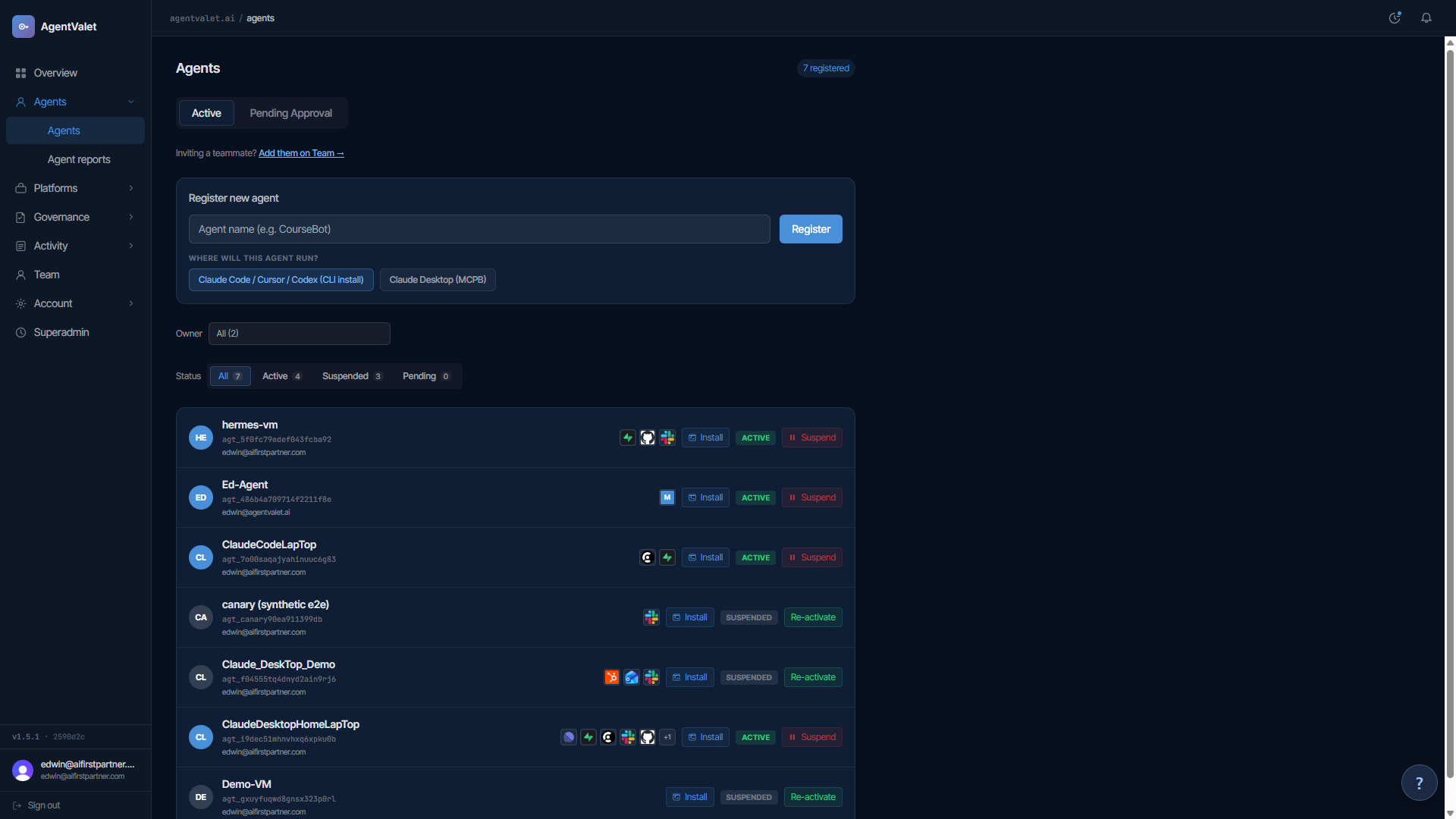
Each pending registration is a card with:
- PENDING badge (blue)
- Agent name and creation time
- Countdown timer — “
{m}m{s}s” or “Expires in{s}s”. Amber under 60 seconds, red after expiry. - REQUESTED SCOPES section — every
(platform, scopes)pair the agent asked for, as pills
Two buttons at the bottom: Approve (green) and Reject (red).
Approve
Clicking Approve opens Grant platform access. Subtitle reads “Select which platforms {agent_name} can access. Requested scopes are pre-selected.”
The form
For each platform you’ve connected on the Platforms page, there’s a checkbox. Tick the platforms you want this agent to access — only ticked platforms appear in the granted list.
For each ticked platform, you see its scopes as a list of checkboxes:
- Green-highlighted scopes are pre-selected based on the agent’s request
- Blue dot ● marks scopes the agent specifically asked for
- Anything unchecked is denied
Below the scope list, a Require human approval per request toggle. It applies to the whole platform grant: flip it on and every call on that platform, reads included, is queued for your decision.
Connecting platforms first
If you haven’t connected any platforms yet, the modal shows:
“No platforms connected yet. Connect platforms first →”
That link goes to /platforms. Connect what you need, come back, and the dropdown will be populated.
Submit
The primary button reads Approve with {N} platforms. Your device then asks for your passkey (face, fingerprint or device PIN): every approval needs it, and a click alone approves nothing. If you have no passkey yet, set one up first under Settings (or from the prompt on your phone). After the passkey check the agent is created with status: active, the granted permissions are written, and you get an Agent registration approved notification.
Agents that connect from a pasted prompt send you a direct approval link instead. See Connect an assistant.
Reject
If the request looks wrong — unknown agent, weird scopes, expired timer — click Reject. No agent is created; the registration request is marked rejected and the requester gets an explicit rejected status on its next poll.
What the agent sees after approval
The requester polls with the registration token (agent_status in MCP). The response now includes the agent ID and a config snippet. The private key is generated on our side and can be collected once, within 5 minutes of approval; the CLI’s --owner path does this automatically. The agent_status tool does not collect it, which is why Claude Desktop users should register from the dashboard instead.
Common gotchas
- You don’t see a pending agent that someone says they registered — they may have used a different owner ID. Confirm the owner ID they passed to
agent_registermatches yours (Settings → Account → Owner ID). - Pending card expired — registration tokens live 10 minutes. The user re-runs the registration and a fresh card appears.
- Granting more scopes than the agent asked for — the modal lets you. The agent will just discover them via
list_platformson its next call. That’s fine.
Next
- Configure an agent’s permissions — after the fact
- Suspend or reactivate an agent