Register an agent (CLI)
The CLI is the right choice when the agent runs from a project (Cursor, Claude Code, Codex), a server, a CI job, or anywhere you’d rather not click through GUI installers.
Run it
In the directory the agent will live in:
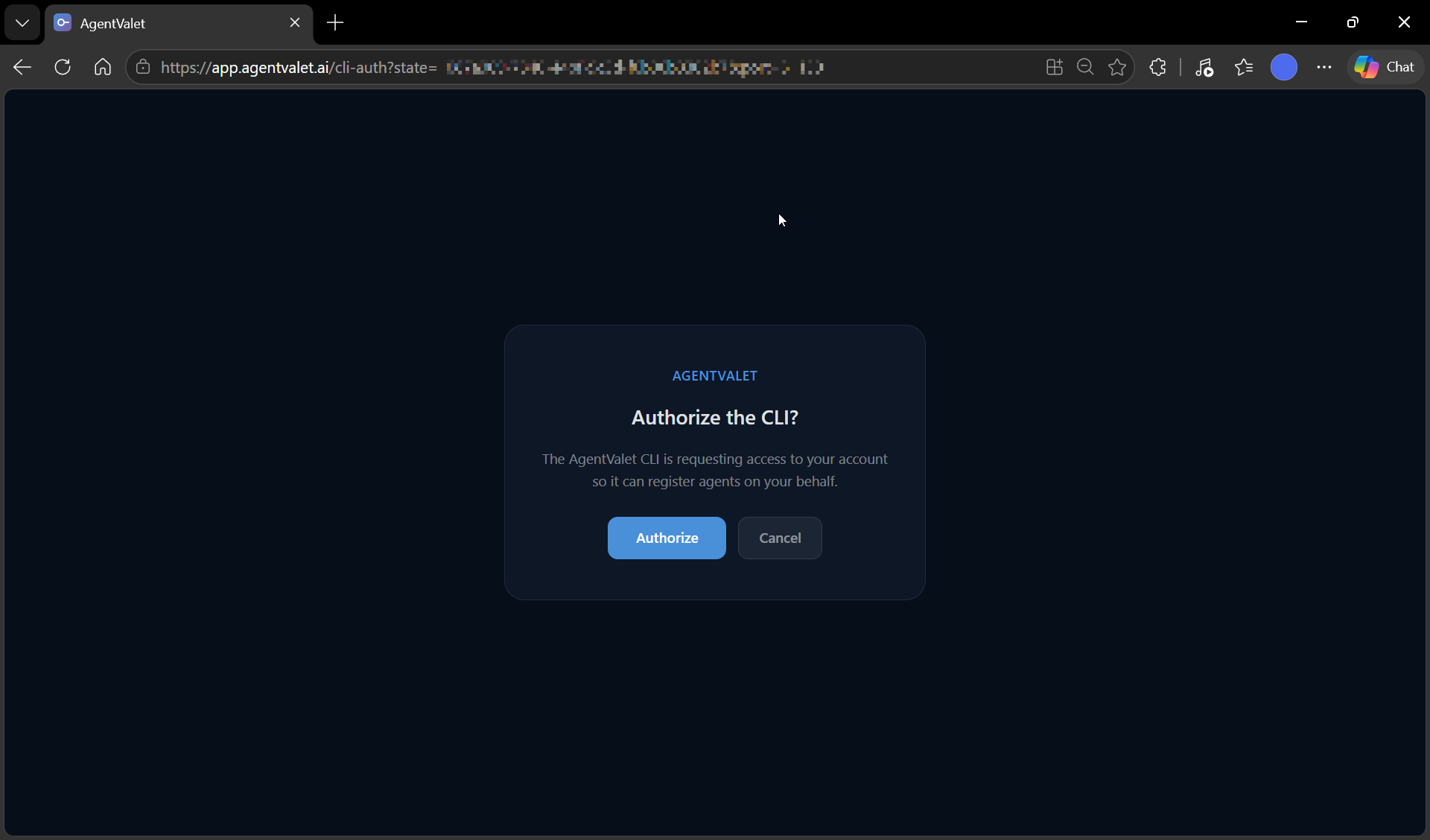
npx @agentvalet/registerIt opens your browser to AgentValet’s /cli-auth page. Sign in if you aren’t already, click Authorize, then come back to the terminal — the CLI receives a session token over a localhost callback.
What it asks for
Agent name — defaults to <hostname> — <directory>. Override if you want, or pass --name to skip the prompt.
What it does next
- Generates an RS256 keypair on your machine (CLI 1.7.0 and later; up to 1.6.0 the keypair was generated on our side and the private key sent back once)
- Registers the agent by sending only the public key to AgentValet’s CLI registration endpoint
- Writes the agent’s files to the project directory:
.agentvalet/agent.key(private key, mode 0600) and.agentvalet/config.json(agent ID, name, proxy URL).env.agentvalet(agent ID, owner ID, proxy URL, key path)- adds
.agentvalet/to.gitignoreif one exists
- Detects which framework you’re in (Claude Code, Cursor, Codex, OpenClaw, Factory Droid) and, with your consent, writes its MCP config — user-scoped by default (
~/.claude.json,~/.cursor/mcp.json), project-scoped with--project(.mcp.json,.cursor/mcp.json) - Adds a governance block to
CLAUDE.mdand writes.claude/agentvalet-permissions.md
Your account sign-in is kept in ~/.agentvalet/config.json, so later runs skip the browser. The CLI prints the list of files it touched at the end so you can verify.
No approval step
Because you signed in to register it, the agent is active immediately; it does not wait in Agents → Pending Approval. It starts deny-by-default with no platform access, so open it under Agents and configure its permissions before it can do anything.
Step — Verify
In your IDE or terminal, the AgentValet MCP server is now wired up. Ask the agent to call list_platforms:
“Use AgentValet to list the platforms I have access to.”
A successful empty list (or list of granted platforms) confirms the install. If you get a “not registered” or credentials error, the local files didn’t write — see below.
Re-running the CLI
After the first registration, the CLI has additional subcommands:
npx @agentvalet/register refresh    # pull latest granted permissions
npx @agentvalet/register mcp-server # run the MCP server over stdio (used by IDE configs)
npx @agentvalet/register list       # list configured agents
npx @agentvalet/register revoke     # revoke an agent (and its child agents)
npx @agentvalet/register inject     # import an existing PEM private key for an agent
npx @agentvalet/register uninstall  # request revocation (owner approves) and remove local files; --local-only skips the request
If something went wrong
- Browser auth never returns — the CLI waits 2 minutes for the browser to authorize. Re-run the CLI and try again.
- “Agent not registered” on first call — confirm
.agentvalet/agent.keyexists in the directory you registered from, and that your MCP config’sAGENT_PRIVATE_KEY_PATHpoints at it. If the file is missing, the writes were blocked (permissions, sandbox). Re-run with sufficient access. - Your other project’s agent stopped being used — the default user-scoped MCP config points at one agent, and each registration repoints it at the newest. Use
--projectwhen different directories need different agents.